
Use Ad Astra to Assign Classrooms to Meeting Times
Introduction
Assigning rooms to courses is the only scheduling task performed outside of Student Central’s Curriculum Management system. Room assignments are completed using the Ad Astra application, which then sends the updated information back to Curriculum Management.
There is a delay in the transfer of information between Student Central and Ad Astra, ranging from approximately one hour to overnight, depending on system demand. For example, transfers may take longer during high-traffic periods such as registration or drop/add.
Note: Course information (e.g., meeting pattern or time) should not be changed after a room has been assigned. To make updates, the room must first be removed from the section, the course information updated, and then the room reassigned (pending availability). Making changes without following this process may result in the loss of the assigned room or create a double-booking.
Navigation
Ad Astra can be accessed via my.fsu.edu > Quicklinks (top bar) > Course Management > Room Management. It is recommended to bookmark Ad Astra for easier access.
Assigning a Room
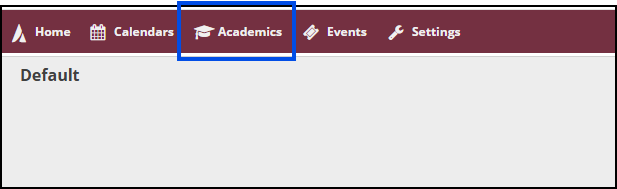
1. In Ad Astra, navigate to Academics > Sections. The main Academics window is divided into two panes: the Filter pane on the left and the Section List pane on the right.
2. Use the Filter pane to narrow the list by selecting the desired Term, Subject, and Course. Click the + to the right of the filter option to open the options to search, click the check box next to the ones you want to include in the search.
3. Once entered, click Search in the top right of the Filter pane.
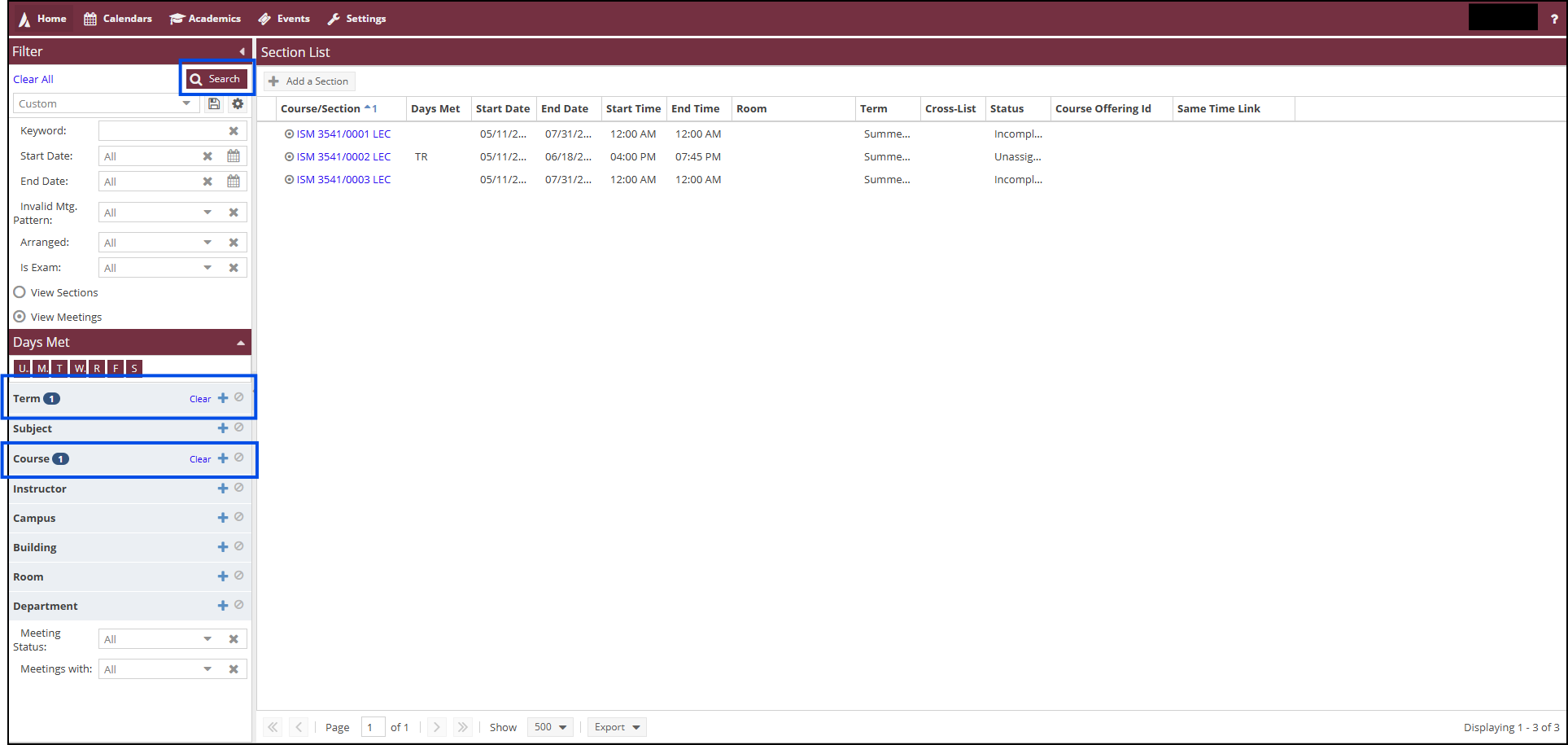
4. From the Section List pane, select the desired section to assign a room.
5. When the section window opens, locate the Assign Room button (house icon) to the right of the section at the bottom of the screen and select it. This will open the room assignment window.

6. The Room Options pane on the left functions as a filter, while available rooms display on the right. Note: You will only be able to view and assign rooms you have access to for that semester (e.g., departmental rooms or those assigned during pre-assignment).
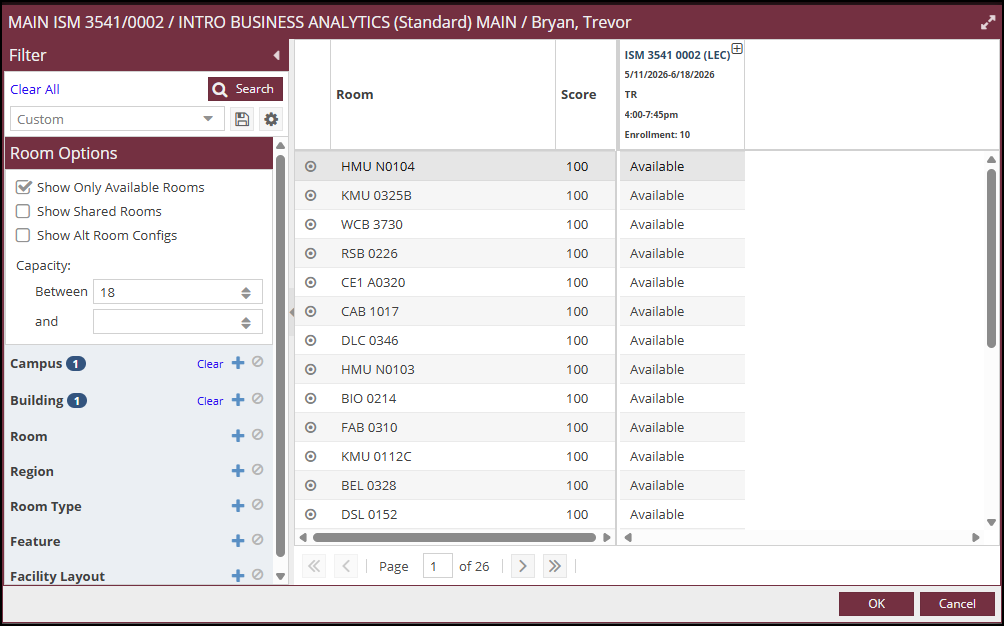
7. Enter the desired filter criteria and click Search in the top right. Available rooms that meet the section’s enrollment capacity will appear in the results. Rooms that are unavailable or too small will not display unless filter settings are adjusted. Note: Rooms cannot be double-booked unless sections are officially combined and intended to share a space.
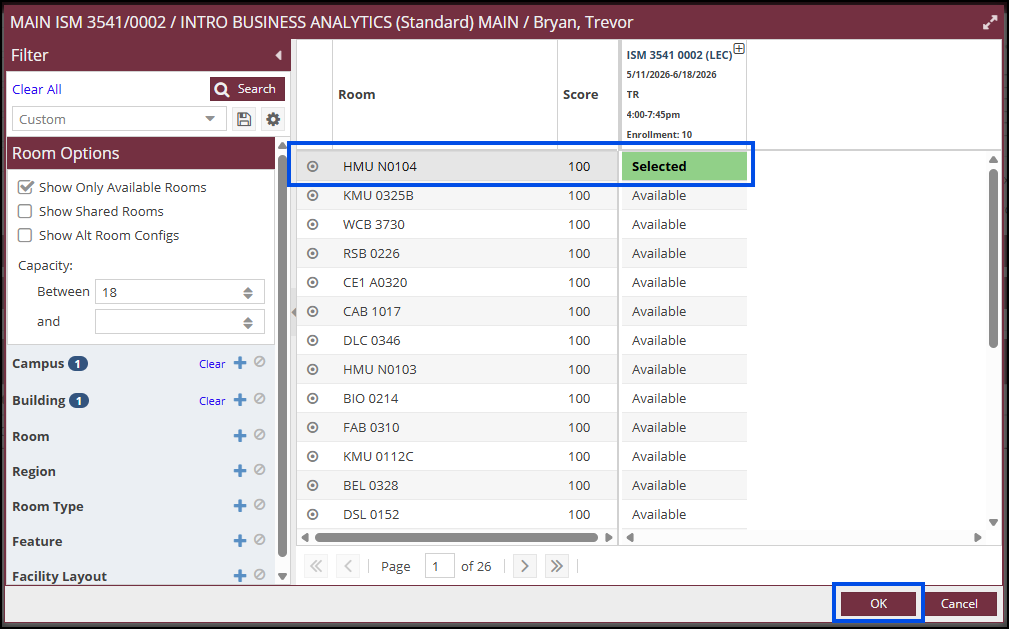
8. Select the desired room and click OK in the bottom right of the pop-up window. If the section is combined, you will be prompted to apply the room to all sections. Select Yes if all sections share the same meeting pattern/time and should use the same room. Otherwise, select No.
9. Click Save in the top left to finalize the room assignment.
10. Click Save and Close in the top left to return to the Section List view and continue assigning rooms to other sections.
Dropping a Room
1. In the Section View of the class (accessed in Steps 1–3), select the Drop Room button (red minus symbol) next to the house symbol to remove the assigned room from the section.

2. Click Save in the top left of the screen to apply the change.
Note: If you drop a large lecture hall (LLH) or a room after the pre-assignment phase, please email EMT-Academic-Scheduling@fsu.edu. After this period, you will not be able to re-assign a LLH and must coordinate with the Curriculum, Space & Scheduling team for assistance with room assignment.
Changing a Room Assignment
To change a room that has already been assigned, follow the same steps outlined in the room assignment process and select a different room in the Room Options pop-up. When a new room is selected and saved, the system will automatically remove the previously assigned room.