
Build a Class Section on the Basic Data Tab
Introduction
The Basic Data tab reflects each class section's essential attributes. It's best to schedule the first section of a class using the Basic Data tab's interface. After the first section is built, you should only use Maintain Schedule of Classes to add more class sections of the course. Maintain Schedule of Classes is also where you should add or update information on the Meetings, Enrollment Cntrl, Reserve Cap, Note, and FSU Textbook tabs.
Note that the Maintain Schedule of Classes and Schedule New Course interfaces are identical. When switching to the maintenance environment to create additional sections, go to the Basic Data tab and click the Plus (+) button to create a NEW section of the class. If you don't create a new section, values that you didn't intend to alter are changed.
Directory Navigation
Schedule a new class section of a course by going to Main Menu > Curriculum Management > Schedule of Classes > Schedule New Course.
1. Select values for the Academic Institution, Term, Subject Area (prefix), and Class Nbr fields.
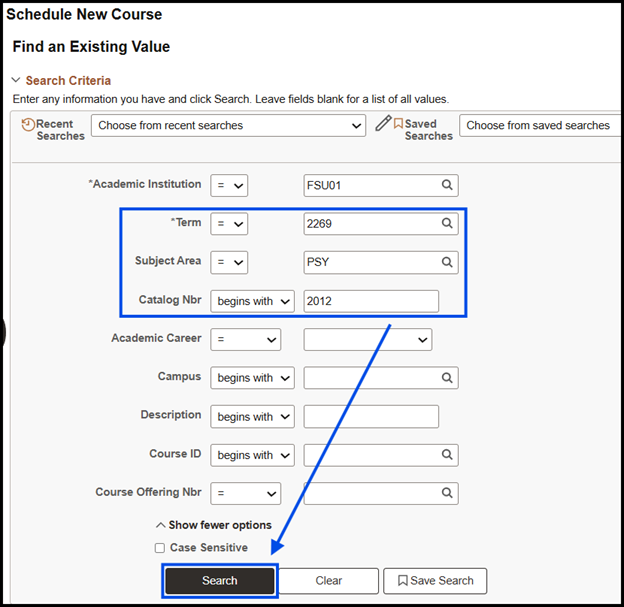
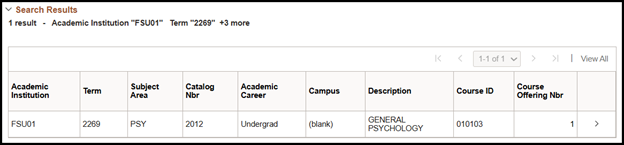
2. Click Search. Select the appropriate version of the class based on the campus from the options below. If there is only one campus option, it will automatically open that version of the class when you click Search.
3. Select the appropriate version of the class, and the Schedule New Course > Basic Data tab will open.
Building the Initial Class Section
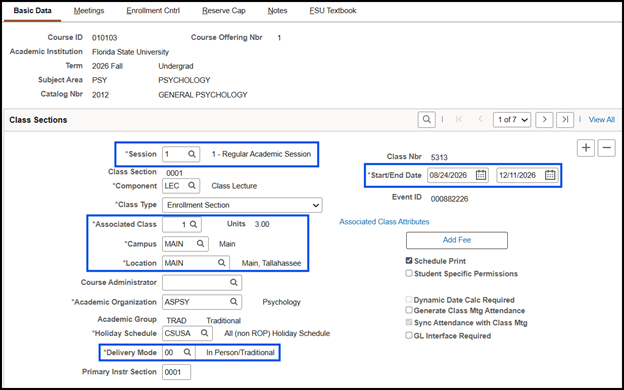
1. In the Class Sections area, enter the session in the Session field. After entering the session, the dates in the Start and End Dates fields auto-populate. After providing a value in the Session field, the Component field auto-populates with the first value it finds in the course catalog. Validate that the Component field's value is correct.
WARNING! It is critical to first enter the Session field's value before moving on to any other field. Entering the correct value in the Session field allows the system to accurately auto-populate other field values on the Basic Data tab. Additionally, other fields become non-editable.
2. The Class Type field's default value is Enrollment. Leave this value set to Enrollment when building a basic, one section course. (Alter it only when building a multi-component class.)
3. The Associated Class field's default value is 1. Leave this value set to 1 when building a basic, one section class.
4. In the Campus field, enter the campus or click the Campus Look Up button to choose from a list of options. After entering this value, the Location field auto-populates. Verify that the value in the Location field is accurate.
5. In the Delivery Mode field, enter the delivery mode. Select the magnifying glass to see available delivery methods.
6. In the Class Attributes area, select a value for the Physical Location field.
NOTE:
- The Campus value represents the campus where the student is matriculated.
- The Location value represents the location from which the instructor instructs, and
- The Physical Location value represents where the student is located during class time.
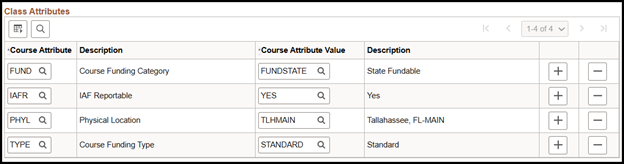
7. The Funding field's default value is State Fundable.
8. Do not change the value in the IAF Reportable field. This value derives from the course catalog and is correct as it is.
9. The Course Funding Type field's default value is Standard.
10. Click Save. The Class Section field's value changes from NEW to a numeric value, and a Class Nbr is assigned.
WARNING! Attempting to go to another tab before saving can result in the appearance of an error message and/or in data loss.