
Create Notes in Curriculum Management
On the Notes tab you can use pre-configured notes; copy and edit pre-configured notes; or author your own, unique notes. Students see these notes when they look at the Class Search > Details page.
Navigation
Create Notes by navigating to Main Menu > Curriculum Management > Maintain Schedule of Classes > Notes tab.
Using Notes Functionality
1. To author a note, place the cursor in the text box across from the Free Format Text: prompt. Type the note.
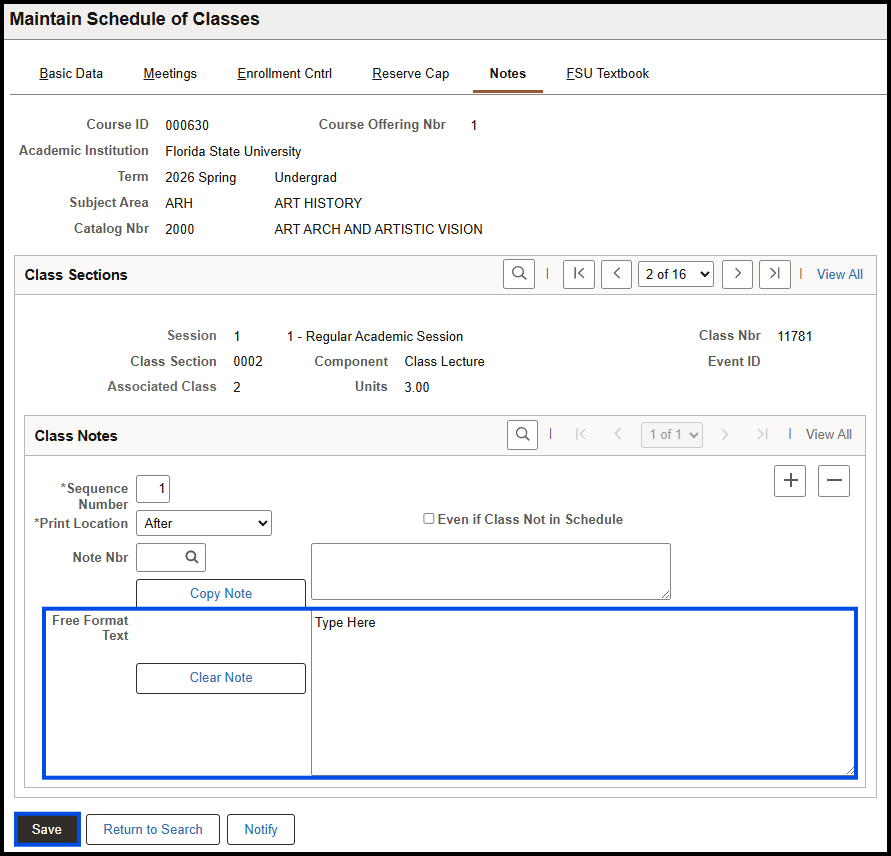
2. Click Save.
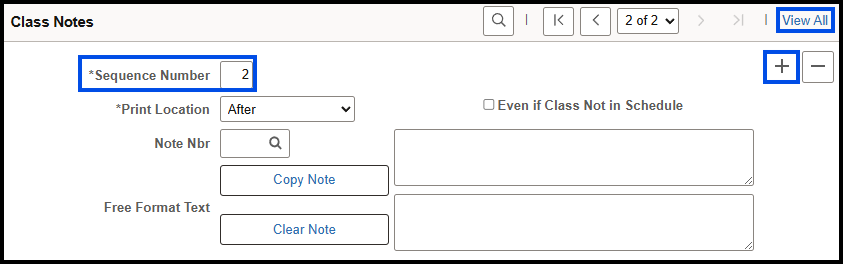
3. To add another note, click the Plus (+) button. Notice that the Sequence Number value increases by one.
4. Click View All to see the previous note while working on the second one.
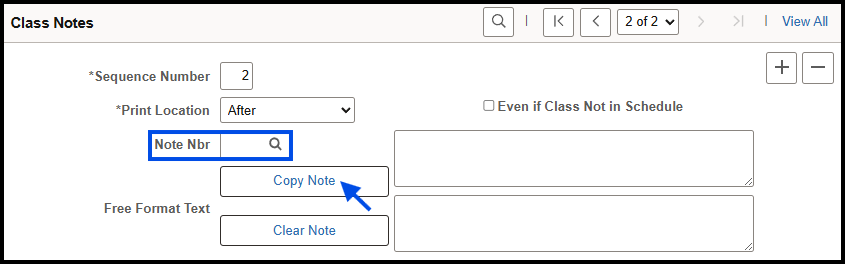
5. To add a pre-configured note, click the Note Nbr Look Up button. Select the note you want, and that note appears in the text box across from the Note Nbr: prompt.
6. Click Save if you do not want to edit the note.
7. To edit the note, click Copy Note. The note reappears across from the Free Format Text: prompt. Edit the note as desired.
8. Click Save.