
How to Uncombine Class Sections
This overview explains how to ungroup together basic, single-component classes using Curriculum Management’s combine sections functionality.
- Navigate to Curriculum Management > Combined Sections Table.
- Enter the Term and Session of the courses you want to review.
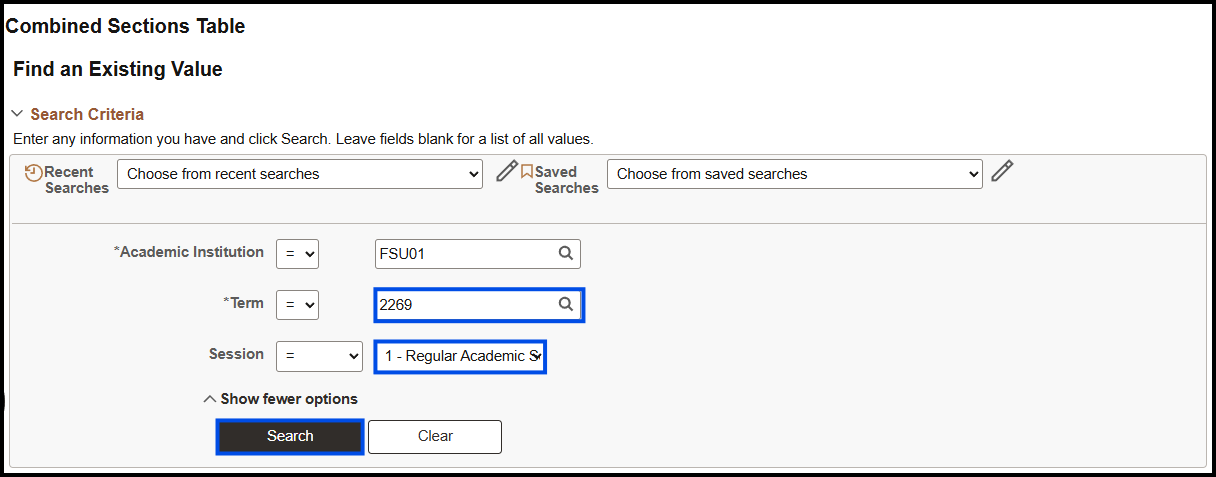
- Click Search.
- Use Ctrl + F to quickly find the class (for example: PAD3013).
- Find the correct course in the list.
- Click View Combined Sections.

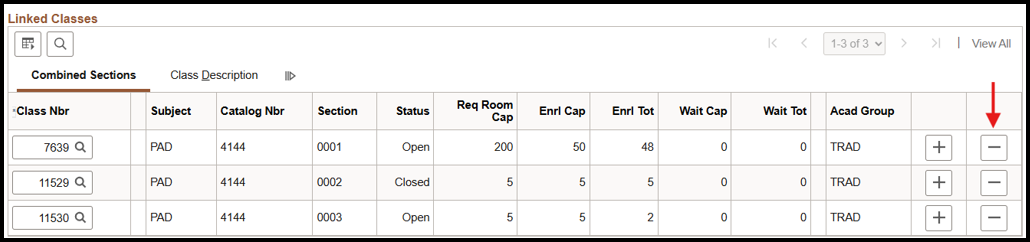
- In the Linked Classes Area:
- To remove one section, click the - (minus) button next to that section
- To remove all sections, click the – button next to each section until the list is empty
- Note: save all meeting pattern times for sections being edited as they will be automatically cleared once the combination is altered
- Click Save at the bottom of the page.
- Click Combined Sections Table under Curriculum Management to return to the search.
- Search again for the combined section (use Ctrl + F if needed).
- Click the – button next to the Combined Section to delete it from the Table.
- Click Save at the bottom of the page.
