
Schedule Multiple Meeting Patterns: A Class with Two Meeting Times
Aome classes meet on different days and times to support their structure. For example, a class may meet twice a week for a lecture and on a different day or location for a discussion. When setting up multiple meeting patterns, you can also assign more than one instructor—for instance, if the discussion leader is different from the lecture instructor.
With multiple meeting patterns, you can:
- schedule a class with multiple meeting patterns that follows the meeting pattern for the entire semester, OR
- schedule a class that meets at one day/time for part of the semester and another day/time for the other part of the semester.
To see instructions on creating meeting times for a class whose meeting pattern changes mid-semester, please see the Schedule Multiple Meeting Patterns: A Class That Changes Meeting Pattern Mid-Semester topic.
Navigation
Main Menu > Curriculum Management > Schedule of Classes > Maintain Schedule of Classes
1. In the Maintain Schedule of Classes Search Criteria area, populate the Academic Institution, Term, and Subject Area fields.
2. Click Search.
3. When the system returns the search results, choose the appropriate class Catalog Nbr. The Maintain Schedule of Classes > Basic Data tab opens.
How to Schedule a Class with Two Meeting Times
1. Create the first meeting pattern by clicking the Meetings tab and then clicking the Pat Look Up button.
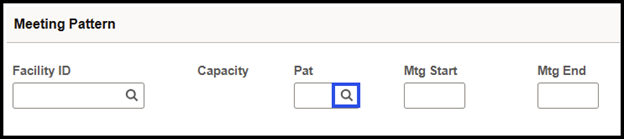
The Look Up Pat dialog box appears.
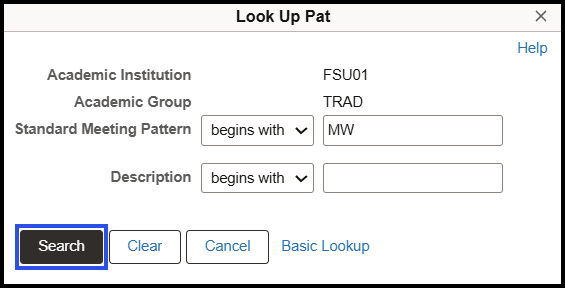
2. Choose a standard meeting pattern. Then choose the starting and ending meeting times. Note: you should always edit the Mtg Start time first. If you edit the Mtg End time first, the system automatically adjusts the start time to align with a standard meeting time.
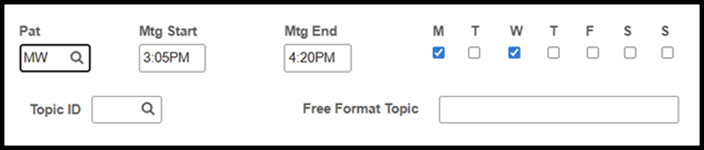
3. If you are scheduling a Special Topics course or any course that requires a topic, click the Topic ID Look Up button to select a pre-defined topic from the course catalog.
- Alternatively, you may enter a unique topic in the Free Format Topic field.
- If the course does not require a topic, skip this step and proceed to Step 5.
4. If a topic is required for the class, after choosing the topic select the Print Topic On Transcript check box if the topic should appear on the students' transcripts.
5. On the Assignment tab in the Instructors For Meeting Pattern area, assign an instructor and contact hours to this pattern. (Refer to the Assign Instructor Roles Topic for in-depth instructions on assigning instructors and contact hours.)
6. Click Save. In the Meeting Pattern area, click the Plus (+) button. A new Meeting Pattern area appears.
7. In the Meeting Pattern title bar, click View All to see the first pattern while creating the second pattern.
8. Follow steps #1 - #6 above to create the second meeting pattern.
9. Click Save.