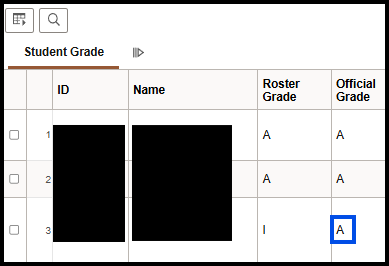
Request a Grade Change
This topic provides instructions on how to use the grade roster's Request Grade Change functionality. Using this grade change feature allows you to change an I or NG to the appropriate grade after grades have posted.
Navigation
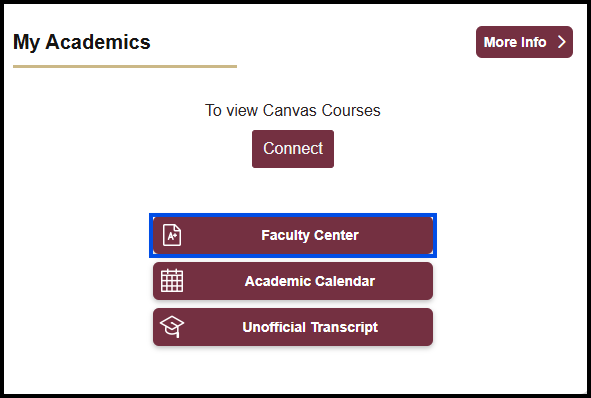
Log on to my.fsu.edu with your FSUID and password. On the left side of your portal page under the myFSU Links area, navigate to My Academics > Faculty Center. Your My Schedule page appears.
CAUTION!
- If you have multiple grade changes to make, MAKE AS MANY AS POSSIBLE BEFORE CLICKING SUBMIT.
- If you do not input all of your grade changes before clicking Submit, you must:
- go back to your My Schedule page,
- click the Grade Roster icon, and
- click the Go button. This is the only way to reactivate the Official Grade column's drop-down boxes.
Steps
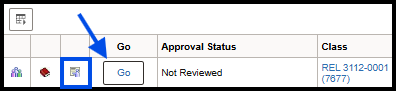
1. After navigating to your My Schedule page, click the appropriate class's grade roster icon, and then click the Go button. The grade roster appears.
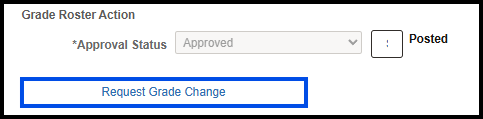
2. In the Grade Roster Action box, click the Request Grade Change link. The Grade Change Request page appears.
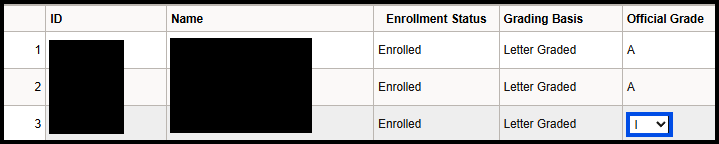
3. In the Official Grade column, the I grade (in this example) has an active drop-down box. Click the drop-down arrow to access grade options, then select the grade.
REMEMBER!
- If you have multiple grade changes to make, MAKE AS MANY AS POSSIBLE BEFORE CLICKING SUBMIT.
- If you do not input all of your grade changes before clicking Submit, you must:
- go back to your My Schedule page,
- click the Grade Roster icon, and
- click the Go button. This is the only way to reactivate the Official Grade column's drop-down boxes.
4. Once finished, click the Submit button at the bottom of the page.

5. Click the Return to Grade Roster link to the left of the Submit button.

Upon submission, a Success message appears next to the grade.

6. The roster appears with the grade change noted in the Official Grade column.