
How to Claim FSU Graduation Tickets
- Click unlock next to “FSU Guest Ticket” on the right-hand side of the screen.
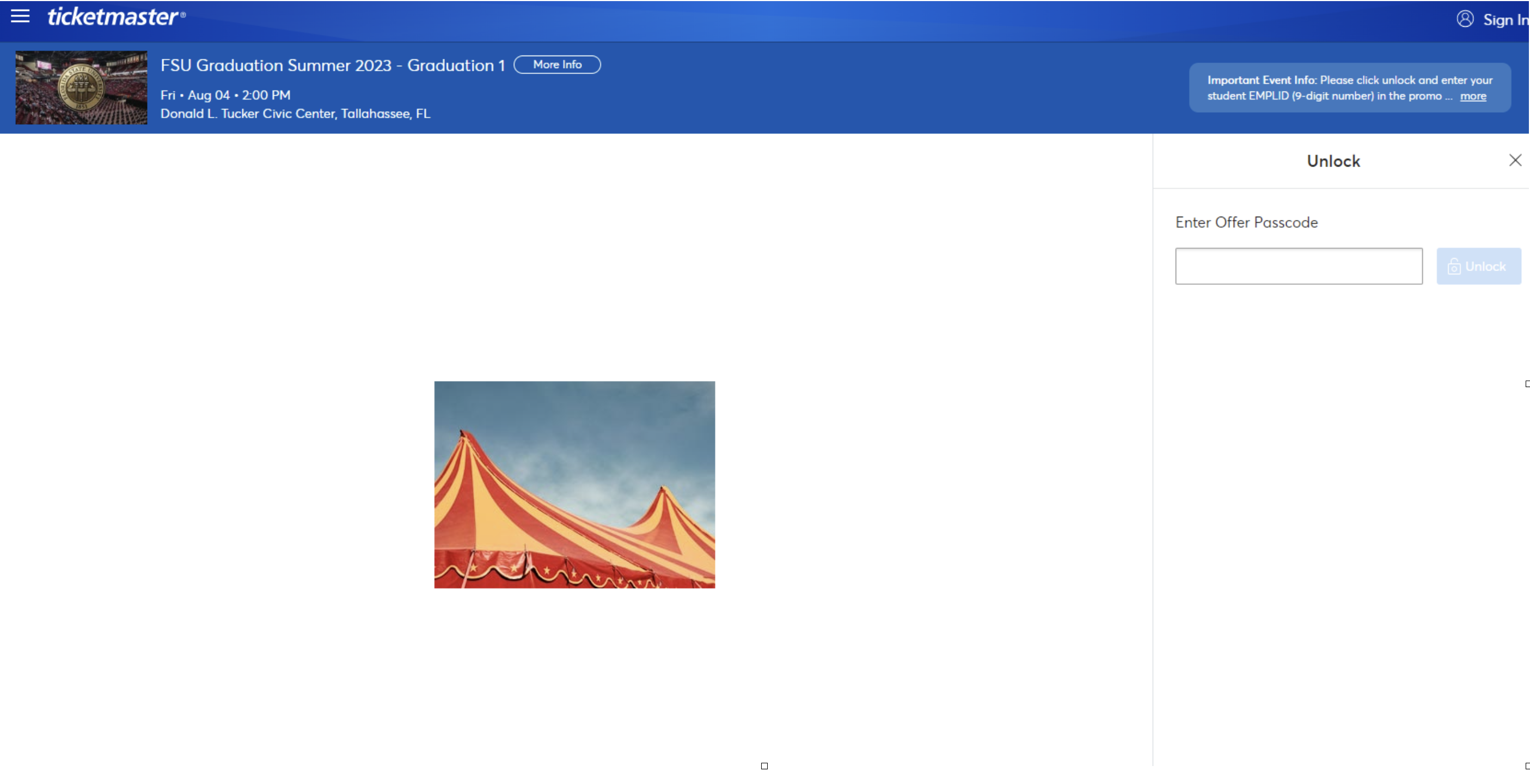
- Type in your EMPLID and click “Unlock”
- Choose “Best Seat” and click the section you would like to sit in. (Tickets are sold best available first come first serve.)
- Seats under “Best Seats” & “Lowest Price” are the best available seats at the time of order.
- If warning that another customer has already claimed seats in your cart, please return back and try again.
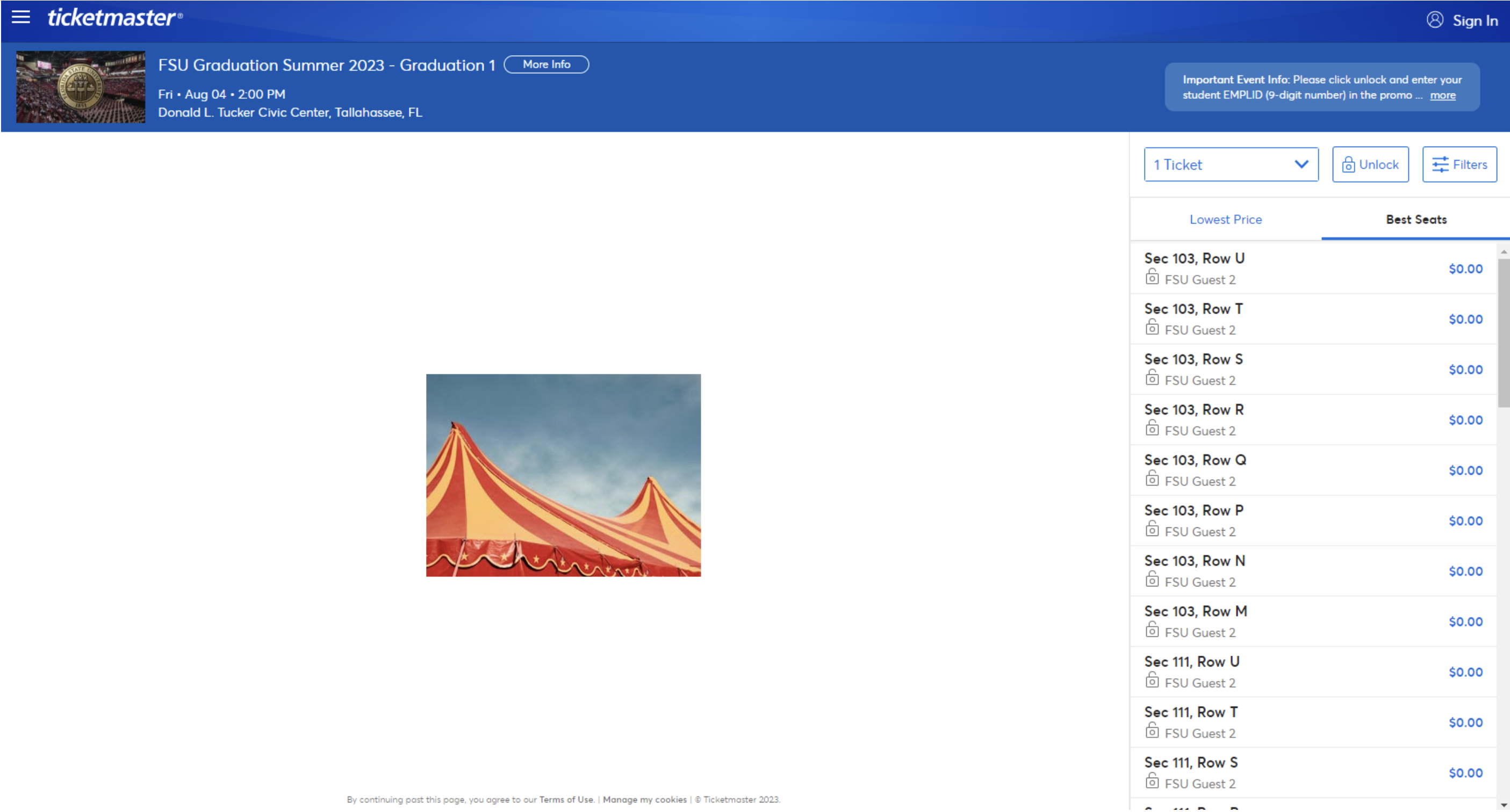
- Select the number of tickets you would like to claim.
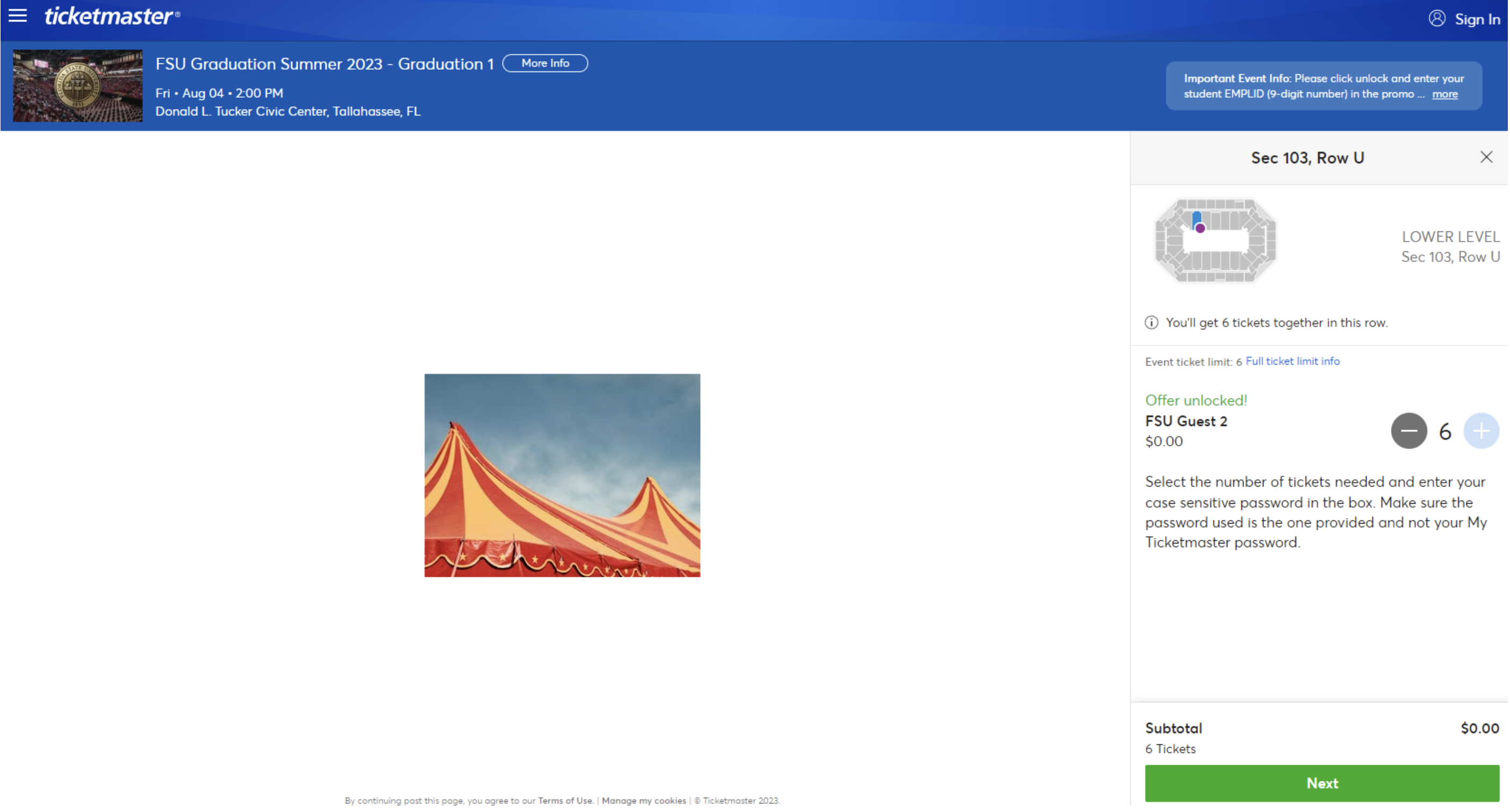
- After you have selected the number of tickets you would like, click “Next”
- Sign in or create a Ticketmaster Account. How To: https://ticketmaster-us.zendesk.com/hc/en-us/articles/9611912911121-Create-a-Ticketmaster-Account
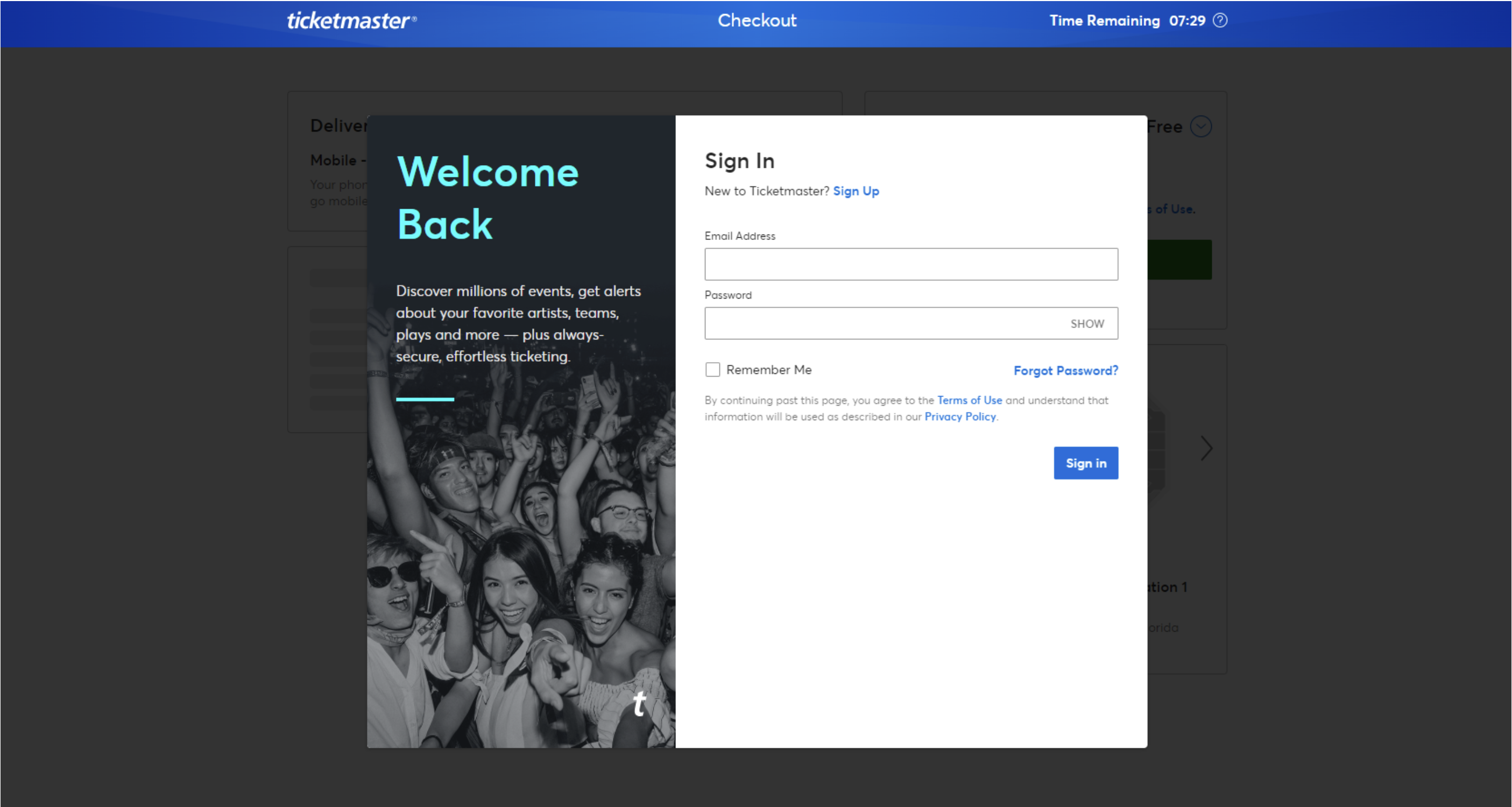
- Put in your information (no payment necessary) that you would like to have on your Ticketmaster account.
- Place Order. - Tickets will be emailed to you.

- Tickets will now show up in your Ticketmaster account and can be transferred to friends and family from within your account if they have a Ticketmaster account. Transfer How To: https://ticketmaster-us.zendesk.com/hc/en-us/categories/9606007481873-Transfer-Tickets
- Screenshots and printed tickets will not work and must be shown on a mobile device for entrance.
Please note, your code can be used as many times as needed to receive up to the allotted amount of tickets for your graduation.