
Create Multiple-Component Courses: Overview
Multiple-Component Classes Defined
Multiple-component courses are those whose curriculum parameters allow for more than one instructional format. The format may be optional or required. For example, BSC 1005C (biology) is always taught in both of its required formats: lecture and lab. On the other hand, from semester to semester, DAA 1100 (dance) might be taught in either one of its optional, allowable formats: discussion or performance. Multiple-component courses may or may not have the "C" (combined) indicator, courses which incorporate a lecture and a lab.
Note: If a class is built as a multi-component class, the system expects students to register for both components. If both of those components do not exist, it will prevent registration. If a department needs an additional component removed, please contact EMT-Academic-Scheduling@fsu.edu prior to registration.
It's important to correctly identify multiple-component courses so that they can be scheduled as the curriculum creators originally intended. Additionally, when the schedule correctly reflects all components, students understand what is involved with a class before they enroll. Moreover, if they choose to enroll, they will find that their schedules automatically and accurately reflect all of the components. Further, when the system captures what courses are multiple-component courses, reporting to the state of Florida and other entities reflects an accurate picture of all that's involved in course delivery.
Note: With a multiple-component setup, all the credit hours must reside under one component. One component is the primary and graded component whereas the additional component is not. Whichever component is determined to be the primary/graded component is where the credit must reside.
How to Create Multi-Component Classes
Note: Multi-Component classes should be defined prior to student enrollment.
Multi-Component classes can be created and maintained under Main Menu > Curriculum Management > Maintain Schedule of Classes. Sections can be more easily viewed in their entirety, however, using Main Menu > Curriculum Management > Update Sections of a Class, whereas Maintain Schedule of Classes is the optimal location for making changes.
Using the Maintain Schedule of Classes Menu
When building a class using Maintain Schedule of Classes, using the Basic Data tab, set or adjust the Associated Class number and Class Type per desired course offerings.
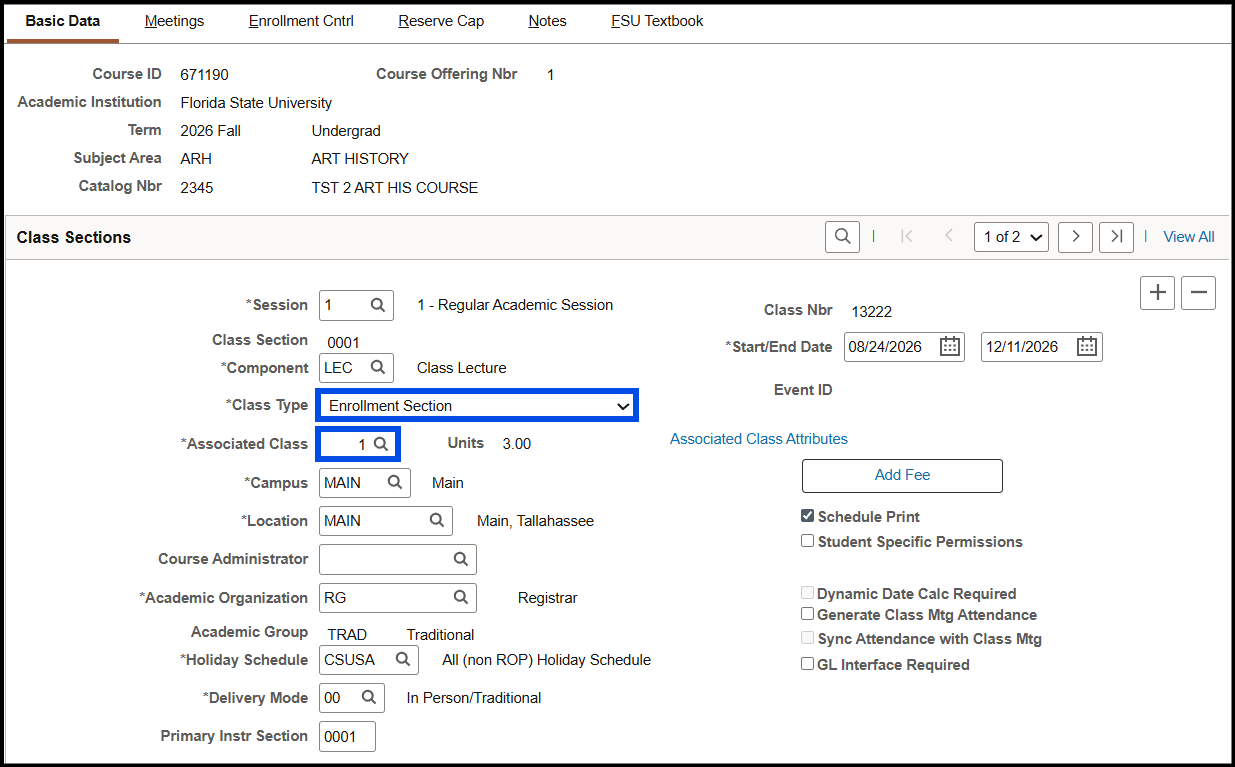
New class sections will have a Look Up button to search for and select existing Associated Class numbers. Values (whether preexisting or new) can also be entered directly into the field without using the Look Up button.
Note: The Associated Class field will be greyed out after students have enrolled, and this number cannot be changed until all students have been manually dropped from the class by the department scheduler.
Using the Update Sections of a Class Menu
You can adjust existing multiple-component class sections through the Update Sections of a Class interface, which is accessed by navigating to Main Menu > Curriculum Management > Update Sections of a Class.
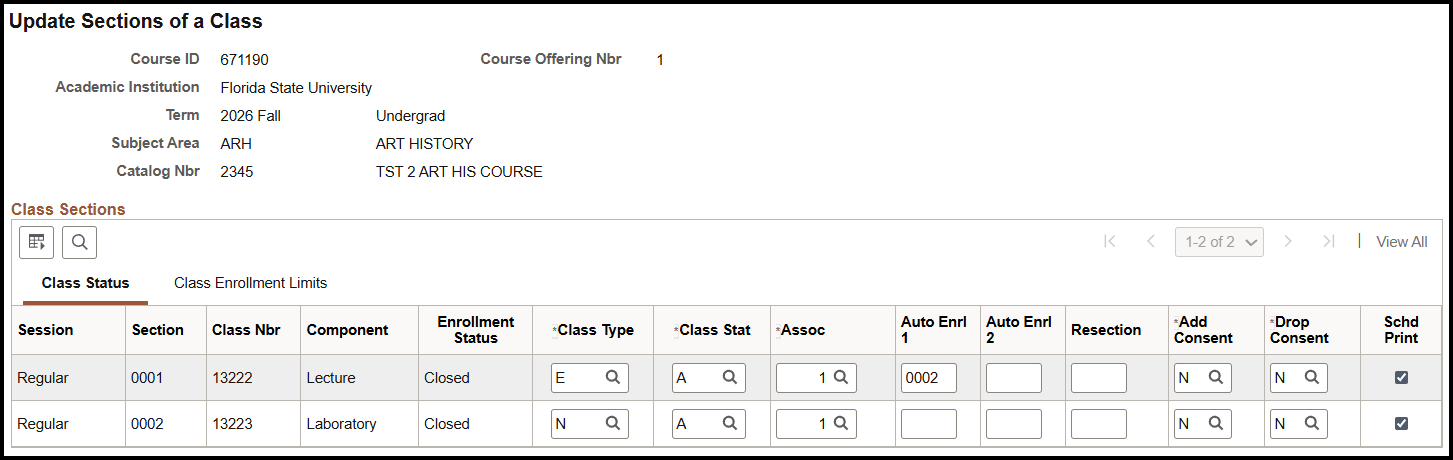
Associated Class Value Explained
The default value for this field is always a 1. At the course catalog level, that 1 indicates that the course is the most "generic" type of course offered. Its defining aspects, such as grade type, pre- and co-requisites, CoreFSU designations, and so on meet the default catalog definition, which is based on the most recently approved curriculum.
When any value other than 1 is assigned to this field, it tells the system to treat that section differently than a generic section. A value other than 1 in this field tells the system to:
- group multiple components together (for example, all components with an Assoc value of 2 could comprise a group) OR
- flag class sections for the Registrar's Office that are intended to deviate from the other sections, such as grading basis and variable credit hours
Whether you are using the Assoc column fields to group classes or flag a section of a course that the Registrar's Office needs to adjust, use the next number in the numerical sequence to indicate something is different about the section.
Example: If you create several multiple-component groups, and those sections Assoc values are set to 1, 2, 3, and 4, respectively, the next section's Assoc value will be 5, even if it's not designating a multi-component group but is rather designating that a change to variable credit hours is required. The next number in sequence, 6, should be used even if you're reverting to building another multiple-component course and not designating that a change to variable credit hours is required.
Notes:
- The Associated Class Value cannot be changed while students are enrolled. To make any changes after students are enrolled, students must be manually dropped by the department scheduler.
- If you need to update or lock variable credit hours for specific sections, please reach out to EMT-Academic-Scheduling@fsu.edu.
Grouping Types Explained
The following grouping types comprise the most likely scenarios encountered when scheduling multiple component courses. They are:
This grouping type indicates that the class components are both/all required. If the student registers for the class, they must take both/all components.
Example: The student enrolls in a lecture/lab course. The student enrolls in the lecture and must take a designated section of a lab.
This grouping type indicates that the components of the class are both/all required. However, while the student is required to take one component of the class, the student can choose among limited sections of the other component.
Example: The student enrolls in a lecture/lab course. The student enrolls in the lecture but can choose between two associated lab sections.
This grouping type indicates that the components of the class are both/all required. However, the student chooses an iteration of a component first and then must take the associated component.
Example: Several sections of a lab are available at different times. The student chooses which lab component best fits his or her schedule and after choosing is automatically enrolled in the lecture component.
This grouping type indicates that the components of the class are both required. However, students can choose both which lecture section and which lab section they want to take with it.
Example: A student chooses which iteration of a lecture they want to take. Upon choosing the lecture component, the student has a variety of lab sections from which to choose