
Setting Reserve Caps
Note: To create new or edit existing reserve caps, please email EMT-Academic-Scheduling@fsu.edu for assistance.
Introduction
After you establish your enrollment controls, you can set reserve caps for particular reserve capacity requirement groups. Reserve Cap functionality allows you to automate opening and closing the date ranges during which various student populations can enroll in a given class section.
A reserve capacity requirement group, simply referred to as an enrollment requirement group, constitutes a specific student population that is defined by a plan or a group.
- A plan is an academic path, (like Interior Design or Statistics), whereas a group is a non-academic path (such as Women in Math-Sci-Eng or Moscow).
- A group designation does not necessarily indicate the academic subject being studied. For instance, students in the Moscow group might be studying any number of academic disciplines.
IMPORTANT!
- You can add as many requirement groups as you need to any sequence;
- you can create several sequences;
- sequences (regardless of how many requirement groups they contain) can run concurrently or consecutively,
- BUT multiple requirement groups within sequences can ONLY run consecutively.
Directory Navigation
Create reserve capacities by going to Student Central > Main Menu > Curriculum Management > Maintain Schedule of Classes > Reserve Cap tab.
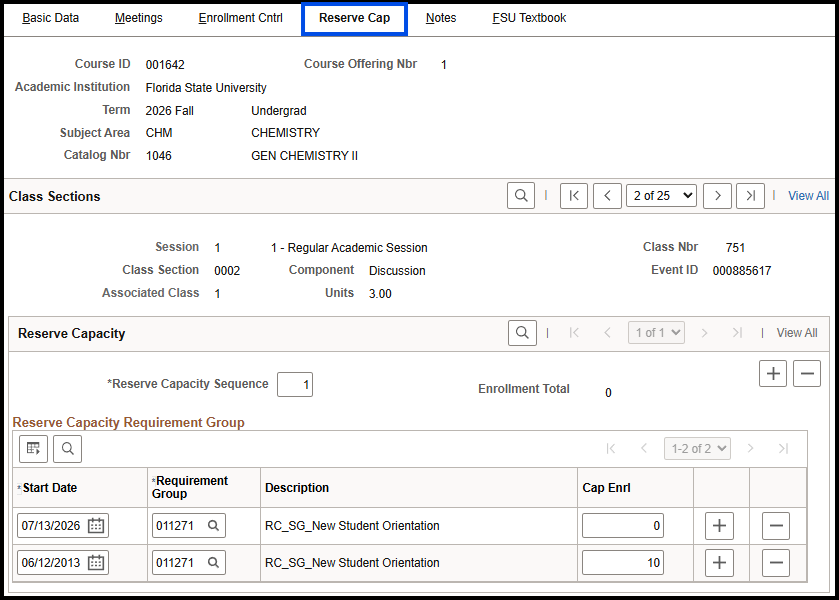
How to Create a Single Sequence with Multiple Groups
1. Select a group or plan by clicking the Requirement Group Look Up button and selecting the item you require.
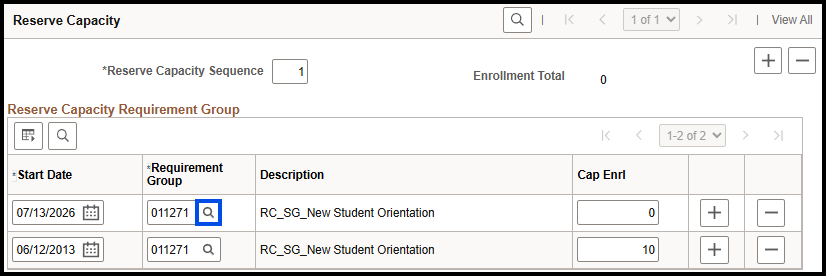
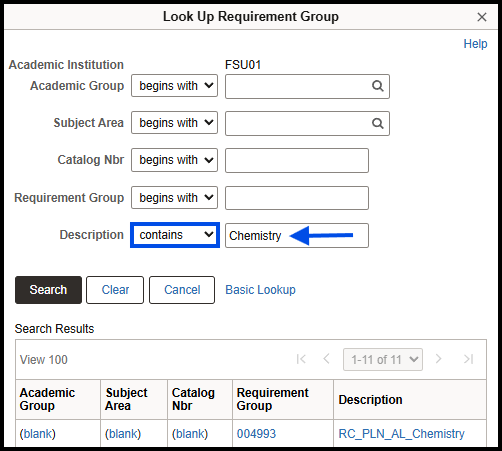
Note: At the top of the Look Up Requirement Group Look Up box, use the Description drop down box to quickly narrow your search.
- Type RC_SG to limit your search to student groups only.
- Type RC_PLN to limit your search to plans only.
- Or, from the Description drop down box select "contains" and type a portion of a word such as "chem" if you're looking for Chemistry.
To look up existing reserve cap details, you may use the following queries:
- FSU_SR_RQ_GRP_LKUP_BY_GRP = look up reserve caps by requirement group number to display all its criteria
- FSU_SR_RQ_GRP_LKUP_BY_PLN = look up reserve caps by plan code to display all reserve caps that include the specified code
2. In the Start Date field, enter the date on which the selected requirement group should begin enrolling for the class.
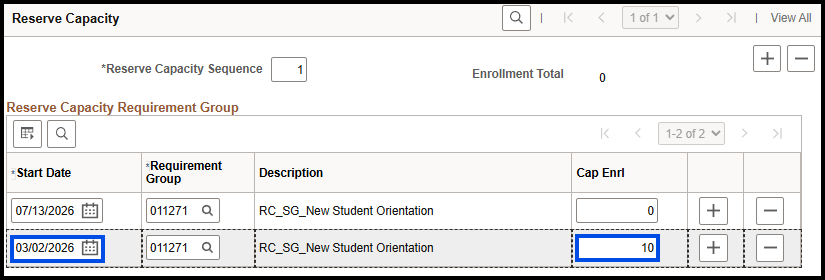
WARNING! Setting a reserve cap for a requirement group for a date occurring after registration opens allows other students to register for the class before that date if those days are not reserved for a specific requirement group, too.
3. In the Cap Enrl field, type the number of seats you would like to reserve for the designated group.
CAUTION! You cannot exceed the total enrollment cap you set on the Enrollment Cntrl tab. That is, if your class enrollment cap is 20 students, and you designate three groups, enrollment for all three groups cannot exceed a total of 20 students.
4. Click Save. Doing so saves the group. If you've reserved the entire enrollment cap for one group, you're finished entering data on the Reserve Cap tab.
If adding another requirement group for consecutive enforcement, then continue to the next step.
Note: The next group cannot enroll beginning on the same date. Groups in single sequences can only run consecutively!
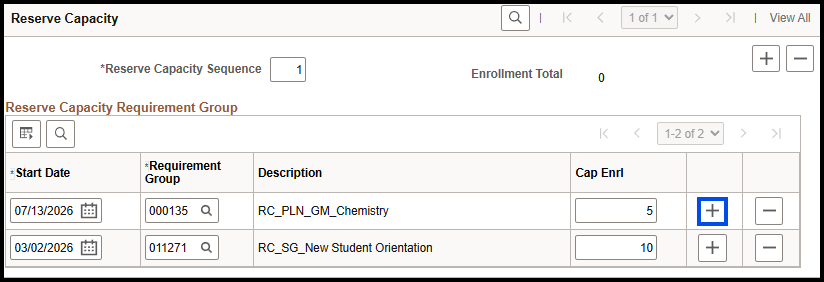
5. Click the Plus (+) button adjacent to the Cap Enrl field to add a row for a second requirement group. A second row appears.
Follow steps #1 through #4 above for the second requirement group, ensuring that when added together the enrollment for the two groups does not exceed the total enrollment cap.
Note: If designating only two requirement groups in a sequence, and you want anyone to be able to enroll when the first requirement group's enrollment period ends, do the following:

- Create the second group using the same Requirement Group you used for the first group.
- Set the Cap Enrl field's value to zero (0). Doing so allows the remaining seats to become available to anyone when the second group's date becomes current.
6. Click Save.
7. Follow steps #1 through #6 for every requirement group you designate for the sequence.
How To Create Multiple Sequences Containing One or More Groups
1. To create another sequence to enable concurrent or overlapping reserve caps, in the Reserve Capacity area click the Plus (+) button, and a new Reserve Capacity Requirement Group container will appear.

2. In the Reserve Capacity title bar, click the View All link.
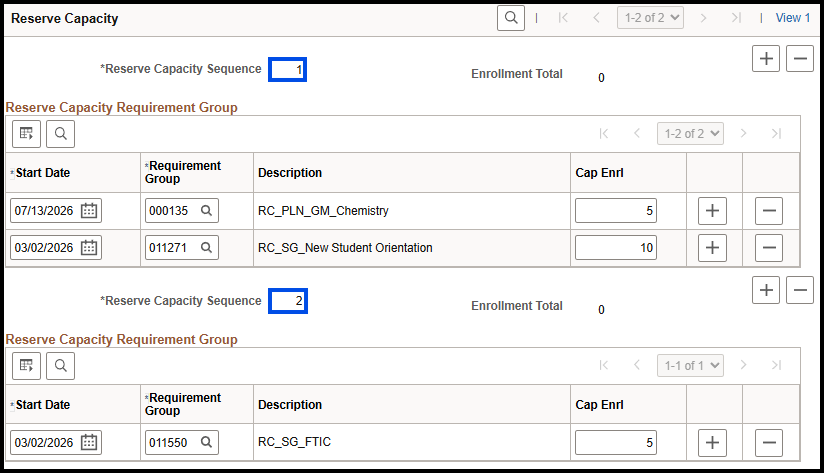
3. Follow the instructions in steps #1 through #4 under How to Create a Single Sequence with Multiple Groups to create requirement group(s) in the sequence.
4. Always click Save to retain your changes and additions!
Summary
- Reserve Cap functionality allows you to automate opening and closing the date ranges during which various student populations can enroll in a given class section.
- A reserve capacity requirement group, sometimes referred to as requirement group, constitutes a specific student population that is defined by a plan (RG_PLN) or a group (RC_SG).
- A plan an academic path, (like "Interior Design" or "Statistics"), whereas a group is a non-academic path (such as "Women in Math-Sci-Eng" or "Moscow"). Students in groups are studying, but the group does not necessarily indicate the academic path. Students in the Moscow group might be studying any number of academic disciplines.
- Remember to always ensure that the Start Date value is no later than the date registration opens.
- Remember that reserve capacity requirement groups can run:
- in chronological order (consecutively), which requires only one reserve capacity sequence, and/or
- concurrently-two date sets running at the same time or overlapping each other-which requires two reserve capacity sequences.
FAQ
- I see that I can set a start date for reserve caps, but how does this work, and what time do they take effect?
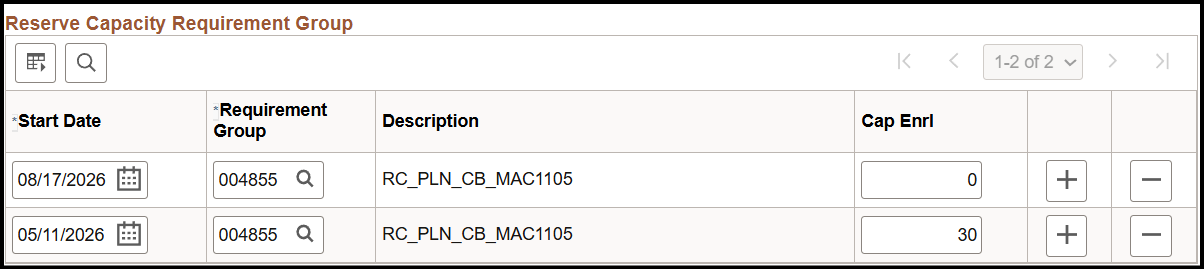
- The date set for a row is the date upon which it takes effect at 12:01AM that day. In the example below, the reservation of 30 seats for group 004855 begins at 12:01AM on 5/11/2026, and the release of that reservation goes into effect at 12:01AM on 8/17/2026.
- The date set for a row is the date upon which it takes effect at 12:01AM that day. In the example below, the reservation of 30 seats for group 004855 begins at 12:01AM on 5/11/2026, and the release of that reservation goes into effect at 12:01AM on 8/17/2026.
- Can I remove a reserve cap if it is determined that it is no longer needed?
- Yes, department schedulers may also manually remove reserve caps from class sections that no longer require them, but the effective start date functionality is a way to enforce dates automatically.